
Before you begin
Make sure you have:
- A supported Pearl Nano or Pearl 2
- A computer connected to the same local network as the Pearl
- An active 4k add on for your Pearl
Purchase a 4K feature add-on
If your Pearl requires the 4K feature add-on, you can purchase it from the Epiphan website.
-
Buy the Pearl-2 4K feature add-on
-
Buy the Pearl Nano 4K feature add-on
Note: Pearl-2 devices purchased after August 2026 include the 4K License.
Install a purchased feature add-on
- Sign in to the Pearl Admin panel and open the Firmware Upgrade page.
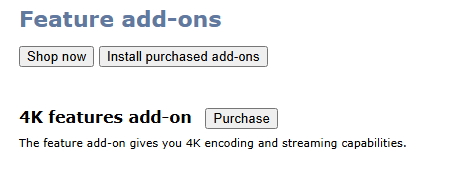
- Under Feature add-ons, click Install purchased add-ons.
- When prompted, click OK to install the add-on and reboot your Pearl system.
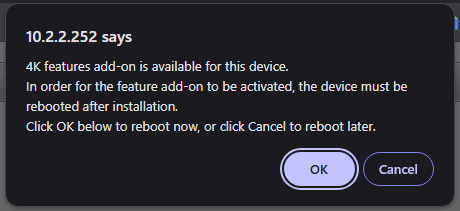
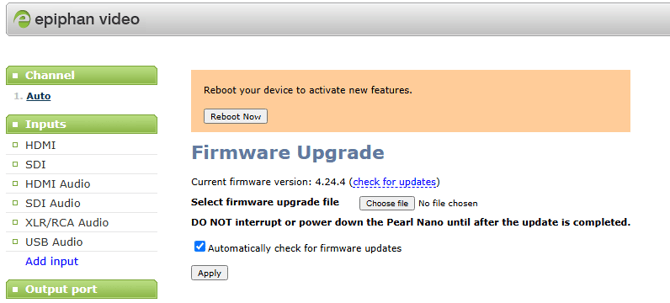
- If you select Cancel and choose to reboot later, reboot the Pearl system from the device or select Reboot from the notification displayed in the Admin panel.
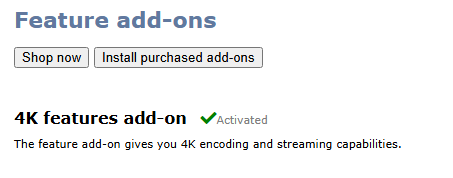
- After the system restarts, return to Firmware Upgrade. A green check mark and Activated appear beside the feature add-on when activation is complete.
Important: Your Pearl system must reboot before a newly installed feature add-on becomes active.